Password Managers
If you reuse passwords, your security is an illusion.
The reality: Billions of passwords leak every year. When smallforum.com gets hacked, attackers try those leaked passwords on Gmail, banks, and every major service. If you reused that password, your accounts are compromised.
The average person has 100+ online accounts. You cannot remember 100 unique, strong passwords. You need a password manager.
This week, you’ll set up a password manager—software that generates and stores unique passwords for every account. You’ll never reuse a password again.
Why Password Managers Matter
The Problem: Password Reuse
Most people use 5-10 passwords for hundreds of accounts. When one site gets breached:
- Attackers dump the database with usernames and passwords
- They try those credentials on Gmail, PayPal, banks, crypto exchanges
- They sell access to the accounts that work
- Your accounts are compromised within hours
Have I Been Pwned tracks 13+ billion leaked credentials. Check if you’re in a breach:
# In Firefox, visit:
https://haveibeenpwned.com/
Enter your email. If you see breaches, assume those passwords are compromised.
The Solution: Unique Passwords Everywhere
A password manager:
- Generates random passwords — 20+ character gibberish, unique per site
- Stores them encrypted — One master password unlocks everything
- Auto-fills login forms — No typing, no mistakes
- Works across devices — (Optional, depends on which manager you choose)
After setup, you’ll only remember one password: the master password. Everything else is random and unique.
Two Options: KeePassXC vs Bitwarden
We’ll set up both, then you choose based on your threat model.
KeePassXC (Offline, Local Storage)
How it works:
- Database stored locally on your computer
- Never leaves your device unless you manually sync it
- Open source, audited, trusted since 2006
Pros:
- ✅ Complete control—no company has your data
- ✅ Works offline, no internet required
- ✅ No account, no email, no registration
- ✅ Free and open source
Cons:
- ❌ Manual sync between devices (copy the database file)
- ❌ Losing the database file = losing all passwords
- ❌ No automatic cloud backup
Best for: Maximum privacy, single-device users, those who want local control
Bitwarden (Cloud-Based, Open Source)
How it works:
- Database stored on Bitwarden’s servers (encrypted)
- Syncs automatically across all devices
- Open source, security audited
Pros:
- ✅ Automatic sync—works on phone, laptop, tablet
- ✅ Cloud backup—won’t lose passwords if device dies
- ✅ Browser extension, mobile apps, desktop apps
- ✅ Free tier is excellent
Cons:
- ❌ Requires trusting Bitwarden (encrypted, but they host it)
- ❌ Requires email and account registration
- ❌ Needs internet to sync
Best for: Multi-device users, those who value convenience, travelers
Decision Guide
Answer these questions:
1. Do you use multiple devices (phone, laptop, tablet)?
- Yes → Bitwarden (automatic sync)
- No → KeePassXC (simpler, no cloud)
2. How technical are you?
- Comfortable manually syncing files → KeePassXC
- Want it to “just work” → Bitwarden
3. What’s your threat model?
- High paranoia, want zero cloud storage → KeePassXC
- Balanced privacy/convenience → Bitwarden
Can I use both? Yes. Advanced users keep KeePassXC for critical passwords (banking, master emails) and Bitwarden for everyday accounts.
Part 1: Setting Up KeePassXC
KeePassXC is already available in Linux Mint’s software repositories.
Install KeePassXC
Open Terminal (Ctrl+Alt+T) and run:
sudo apt update
sudo apt install keepassxc -y
Enter your password when prompted.
Launch KeePassXC
- Click Menu → Accessories → KeePassXC
- Or press
Superand type “keepassxc”
Create Your Database
- Click Create new database
- Database Name: Call it something like “Personal Passwords”
- Click Continue
Set Master Password
This is the only password you’ll remember. It must be:
- At least 20 characters
- Mix of words, numbers, symbols
- Memorable but not guessable
Good master passwords:
Sunset$Campfire!Mountain92%TrekBlueberry_Waffle-7_Penguins!DanceCoffee#Bicycle&Moon_3_Horizons
Bad master passwords:
password123(common)JohnSmith1985(personal info)qwerty(keyboard pattern)
Passphrase method (recommended): Use 5-6 random words with symbols:
correct-horse-battery-staple-mountain-7
Easier to remember, harder to crack than short complex passwords.
Enter your master password twice.
CRITICAL: Write this password down on paper and store it somewhere safe. If you forget it, your passwords are gone forever. There is no password recovery.
Add Database Encryption Settings (Optional but Recommended)
On the encryption settings screen:
- Encryption Algorithm: Keep as AES 256-bit
- Key Derivation Function: Keep as Argon2id
- Decryption Time: increase to ~5–10 seconds (for Argon2id, KeePassXC shows a time-based Decryption Time slider — “Transform rounds” is the AES-KDF field, not Argon2id’s)
This makes brute-forcing your database harder. Click Continue, then Done.
Your First Password Entry
- Click the Add New Entry button (key with a +)
- Fill in the fields:
- Title: Name of the site (e.g., “Gmail”)
- Username: Your email or username
- Password: Click the dice icon to generate a random password
- Set Length: 20 characters
- Check: Upper-case, Lower-case, Numbers, Special Characters
- Click Generate
- URL: The login page (e.g.,
https://mail.google.com) - Notes: Any additional info (backup codes, security questions)
- Click OK
The entry is now saved. Your database file is automatically saved.
Browser Integration
KeePassXC can auto-fill passwords in Firefox.
- In KeePassXC, go to Tools → Settings
- Click Browser Integration in the left sidebar
- Check Enable browser integration
- Check Firefox
- Click OK
Now install the browser extension:
- Open Firefox
- Go to Add-ons → Extensions
- Search for KeePassXC-Browser
- Click Add to Firefox
Test it:
- Visit a login page (e.g., Gmail)
- Click in the username field
- Look for the KeePassXC icon that appears
- Click it and select your saved entry
- It auto-fills both username and password
Backup Your Database
Your database is wherever you chose to save it in the previous step (this guide uses):
~/Documents/Passwords.kdbx
Backup strategy:
- Copy this file to a USB drive weekly
- Store the USB in a safe location
- Or sync manually to another device
Never store the backup in cloud storage (Google Drive, Dropbox) unless you encrypt it separately with another tool.
Part 2: Setting Up Bitwarden
Bitwarden is a cloud-based password manager with automatic sync.
Create Bitwarden Account
- Open Firefox
- Go to https://vault.bitwarden.com/
- Click Create Account
- Enter:
- Email: Use a privacy-focused email (we’ll cover this in Week 5)
- Name: Can be anything (doesn’t need to be real)
- Master Password: Same rules as KeePassXC (20+ characters, memorable)
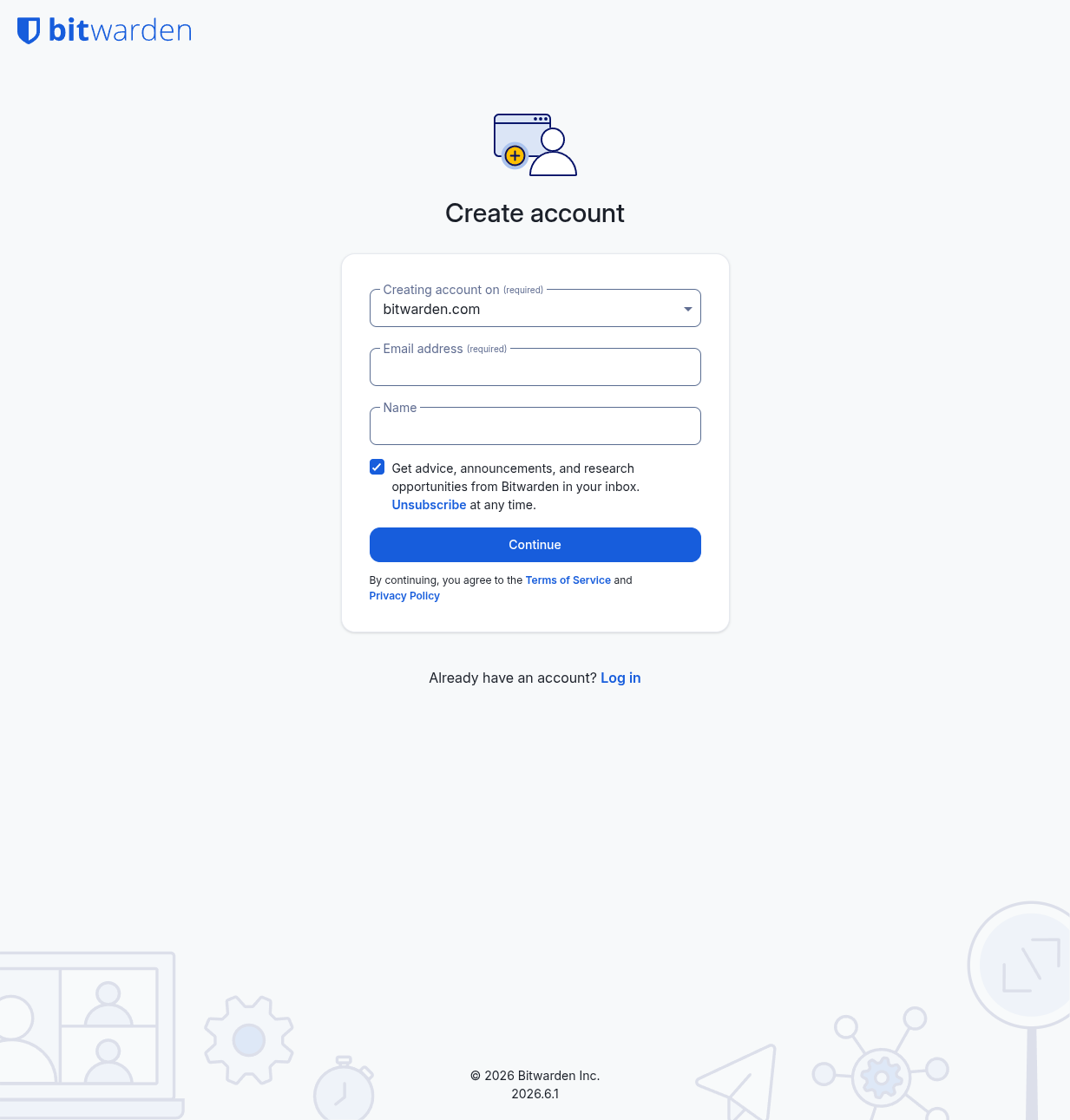
Write down your master password. There is no password recovery.
- Click Submit
Install Bitwarden Browser Extension
- In Firefox, go to Add-ons → Extensions
- Search for Bitwarden Password Manager
- Click Add to Firefox
- Click the Bitwarden icon in toolbar
- Click Log In
- Enter your email and master password
Your First Password in Bitwarden
- Click the Bitwarden icon in toolbar
- Click the + button (Add item)
- Fill in:
- Name: Site name (e.g., “Gmail”)
- Username: Your email/username
- Password: Click the Generate button
- Length: 20 (or more)
- Enable: A-Z, a-z, 0-9, Special Characters
- Click Use Password
- URI: The login page URL (e.g.,
https://mail.google.com) - Notes: Backup codes, security questions, etc.
- Click Save
The password is now stored in Bitwarden’s cloud, encrypted with your master password.
Test Auto-Fill
- Visit a login page
- Click in the username field
- Look for the Bitwarden icon overlay
- Click it and select your saved entry
- It auto-fills both username and password
Install Bitwarden on Other Devices (Optional)
Desktop app:
# Download from Bitwarden website
# Or install via Flatpak:
flatpak install flathub com.bitwarden.desktop
Mobile app:
- Search “Bitwarden” in your phone’s app store (F-Droid for Android, App Store for iOS)
- Log in with your master password
- Enable auto-fill in phone settings
All devices sync automatically.
Part 3: Generating Strong Passwords
Both KeePassXC and Bitwarden have password generators. Use them every time you create an account.
Password Generator Settings
Recommended settings:
- Length: 20-30 characters
- Include: Uppercase, lowercase, numbers, special characters
- Avoid: Words, patterns, personal info
Example generated passwords:
K8#mP2$vL9@nQ4%jR7^s
xT9&wZ3!bN6#mL2$hQ8@vR5
These are impossible to remember and impossible to crack.
Site-Specific Notes
Some sites have bad password requirements:
- Maximum length (e.g., 16 characters)
- No special characters
- Must include a number
Adjust the generator for each site’s dumb requirements. Your password manager remembers them, so you don’t care.
Part 4: Migrating Existing Passwords
You have passwords saved in Firefox, Chrome, or written down. Let’s migrate them.
Export from Firefox
- Go to Settings → Privacy & Security
- Scroll to Logins and Passwords
- Click Saved Logins
- Click the three dots menu → Export Logins
- Save as
passwords.csv
Import to KeePassXC
- Open KeePassXC
- Go to Database → Import → CSV File
- Select your
passwords.csvfile - Map columns:
- URL → URL
- Username → Username
- Password → Password
- Click OK
All passwords are now in KeePassXC.
Import to Bitwarden
- Go to https://vault.bitwarden.com/
- Click Tools → Import Data
- Select File format: Firefox (csv)
- Click Choose File and select
passwords.csv - Click Import Data
Delete the CSV File
Critical: The CSV file contains all your passwords in plain text.
# Securely delete it:
shred -vfz -n 10 passwords.csv
This overwrites the file 10 times before deleting.
Change All Passwords (Recommended)
Your old passwords were probably reused or weak. Over the next few weeks, log in to each site and change the password using your password manager’s generator.
Prioritize:
- Email accounts (these control password resets for everything else)
- Banking and financial accounts
- Social media
- Shopping sites
- Everything else
Part 5: Password Manager Best Practices
Use Unique Passwords Everywhere
Never reuse passwords. Even between low-stakes accounts. A breach on randomforum.com shouldn’t compromise your email.
Enable Two-Factor Authentication (2FA)
Week 8 covers 2FA in detail. For now, enable it on:
- Email accounts
- Banking
- Password manager account (if using Bitwarden)
Use an authenticator app (Google Authenticator, Aegis, etc.), not SMS.
Master Password Security
Your master password is the single point of failure:
- Never share it with anyone
- Write it down on paper (not digital)
- Store the paper safely (safe, locked drawer)
- Change it yearly or if compromised
Regular Backups (KeePassXC)
If using KeePassXC, back up your database weekly:
# Create backup with date:
cp ~/Documents/Passwords.kdbx ~/Documents/Passwords-backup-$(date +%Y-%m-%d).kdbx

# Copy to USB drive:
cp ~/Documents/Passwords.kdbx /media/yourusername/USB-DRIVE/
Keep at least 2 backups in different locations.
Password Manager Hygiene
Do:
- ✅ Generate 20+ character random passwords
- ✅ Use the password manager for every account
- ✅ Back up your database (KeePassXC)
- ✅ Review and update old passwords periodically
Don’t:
- ❌ Store your master password in the password manager
- ❌ Share your password database file unencrypted
- ❌ Use predictable master passwords
- ❌ Sync KeePassXC database via unencrypted cloud storage
Part 6: Advanced Features
Secure Notes
Both managers can store more than passwords:
Credit cards:
- Store card numbers, CVV, expiration dates
- Auto-fill checkout forms
Secure notes:
- WiFi passwords
- Software license keys
- Passport numbers
- Bank account numbers
Identities:
- Name, address, phone
- Auto-fill shipping forms
Password Strength Checker
Both managers can audit your existing passwords:
KeePassXC:
- Go to Database → Database Reports
- Click Password Quality
- See weak, reused, old passwords
Bitwarden:
- Go to https://vault.bitwarden.com/
- Click Tools → Vault Health Reports
- See weak, reused, compromised passwords
Fix weak passwords immediately.
TOTP (Time-Based One-Time Passwords)
Premium Bitwarden ($10/year) can generate 2FA codes directly in the password manager. This is convenient but less secure—if your password manager is compromised, so is your 2FA.
For high-security accounts, use a separate 2FA app instead.
Troubleshooting
I forgot my master password
You’re screwed. There is no password recovery. This is by design—if there were a recovery mechanism, attackers could use it too.
Prevention:
- Write your master password on paper
- Store it in a safe or locked drawer
- Tell one trusted person where it is (in case of emergency)
Auto-fill isn’t working
KeePassXC:
- Check Tools → Settings → Browser Integration is enabled
- Make sure the KeePassXC-Browser extension is installed in Firefox
- The KeePassXC application must be running
Bitwarden:
- Make sure you’re logged in to the browser extension
- Check that the URL in the vault entry matches the current page
- Try clicking the Bitwarden icon manually
A site won’t accept my generated password
Some sites have stupid requirements (e.g., max 16 characters, no special characters).
Fix:
- Adjust the generator settings to match their requirements
- Save it in your password manager anyway
- Consider emailing the site admin to fix their broken password policy
Should I store my master password in my password manager?
No. This defeats the entire point. Your master password is the one password you memorize.
Can I share passwords with family/team?
KeePassXC:
- Export specific entries to a new database file
- Share that file via secure channel
Bitwarden:
- Individual Premium is $10/year (TOTP, file attachments, etc.)
- Sharing needs a separate Organization plan — Families (~$40/year, up to 6 users) or Teams/Enterprise; individual Premium alone doesn’t include sharing
What’s Next
You now have unique, strong passwords for every account. Next week, we’ll secure your email with privacy-focused providers and email aliases to compartmentalize your identity.
Week 5 covers email privacy—alternatives to Gmail, email aliases, and PGP encryption.
Summary
This week you:
- Learned why password reuse is catastrophic
- Chose between KeePassXC (local) and Bitwarden (cloud)
- Set up a password manager with browser integration
- Generated strong, unique passwords
- Migrated existing passwords from Firefox
- Learned best practices for master password security
You’ll never reuse a password again. Combined with your hardened browser (Week 3) and Linux system (Week 2), your attack surface is shrinking rapidly.
💻 Ready for the command line? Cypherpunk 101 goes deeper on key management—rotation, revocation, hardware tokens, and secret-sharing: Cypherpunk 101 Week 3 (Part 4): Key Management & Modern Alternatives →