Two-Factor Authentication
Passwords aren’t enough.
Even with a unique, 30-character random password stored in your password manager, your account can still be compromised through:
- Phishing (you enter password on fake site)
- Keyloggers (malware records your typing)
- Server breaches (company stores passwords badly)
- Session hijacking (attacker steals your login session)
- Social engineering (attacker convinces support to reset password)
Two-Factor Authentication (2FA) adds a second barrier. Even if someone steals your password, they can’t log in without the second factor.
This week, you’ll set up 2FA on your critical accounts using authenticator apps and hardware security keys.
Understanding Authentication Factors
The Three Factors
Authentication relies on proving your identity through:
- Something you know — Password, PIN, security questions
- Something you have — Phone, hardware key, smart card
- Something you are — Fingerprint, face, iris
Single-factor: Just a password (what most people use) Two-factor (2FA): Password + phone app or hardware key Multi-factor (MFA): Two or more factors from different categories
Why Two Factors?
With password only:
- Attacker steals password → Account compromised
With password + 2FA:
- Attacker steals password → Still needs second factor
- Attacker steals phone → Still needs password
- Must compromise BOTH factors simultaneously
2FA doesn’t make your account unhackable, but it dramatically raises the difficulty.
Part 1: Types of 2FA (From Worst to Best)
SMS 2FA (Avoid)
How it works: Site texts a code to your phone number.
Why it’s bad:
- SIM swapping: Attacker convinces carrier to transfer your number
- SS7 attacks: Hackers intercept texts via carrier network vulnerabilities
- Social engineering: Carrier employees can be bribed or tricked
- Phone theft: Thief can read your texts
Real-world failures: Twitter CEO Jack Dorsey’s account was hacked via SIM swap. Countless crypto wallets drained via SMS 2FA bypass.
Use SMS 2FA only when: It’s the only option available, and it’s still better than no 2FA.
Email 2FA (Avoid)
How it works: Site emails a code to your email address.
Why it’s bad:
- Your email is likely protected by… password only
- If email compromised, all email 2FA compromised
- Email accounts are high-value targets
Use email 2FA only when: SMS isn’t available and TOTP isn’t supported.
TOTP Apps (Good)
How it works: App generates time-based one-time passwords (TOTP) that change every 30 seconds.
Why it’s good:
- Codes generated locally on your device
- No network required after setup
- Can’t be SIM swapped
- Open standard (works everywhere)
Why it’s not perfect:
- Phone theft exposes codes
- Phishing can capture codes in real-time
- Backup codes can be stolen
Use TOTP for: Most accounts—it’s the sweet spot of security and convenience.
Hardware Security Keys (Best)
How it works: Physical device you plug in or tap to authenticate.
Why it’s best:
- Phishing-proof: Device cryptographically verifies the real site
- Can’t be copied: Private key never leaves device
- Requires physical presence: Remote attackers can’t use it
- No codes to steal: No TOTP codes to intercept
Why it’s not perfect:
- Costs money ($25-50+ per key)
- Can be lost or damaged
- Not supported everywhere
- Need backup key
Use hardware keys for: Email, password manager, financial accounts—your most critical services.
Passkeys (Emerging)
How it works: Cryptographic credential stored on device, verified by biometric or PIN.
Benefits:
- Phishing-resistant like hardware keys
- Can sync across devices (with trade-offs)
- No passwords to remember
- Easier than hardware keys
Current status: Adoption growing, not yet universal. Works as 2FA or password replacement.
Part 2: Setting Up TOTP Authentication
Choosing an Authenticator App
Recommended: Aegis Authenticator (Android)
- Open source
- Encrypted local storage
- Encrypted backups
- No cloud sync (your codes stay on your device)
Recommended: Raivo OTP (iOS)
- Open source
- Local storage with iCloud sync option
- Clean interface
- No data collection
Avoid:
- Google Authenticator: has Google-account cloud sync (since 2023), but those codes aren’t end-to-end encrypted in the sync, and it’s tied to your Google account
- Authy: Cloud sync with Twilio (trust issues)
- Microsoft Authenticator: Tied to Microsoft ecosystem
Install Aegis (Android)
- Open F-Droid (recommended) or Google Play Store
- Search for Aegis Authenticator
- Install and open
- Set up vault password:
- Choose strong password (different from phone PIN)
- Enable biometric unlock for convenience
- Remember this password — it protects your 2FA codes
Install Raivo OTP (iOS)
- Open App Store
- Search for Raivo OTP
- Install and open
- Set up encryption password
- Choose sync option:
- None (most secure, manual backup)
- iCloud (convenient, Apple has access)
Add Your First 2FA Code
We’ll use your Proton Mail account (from Week 5) as an example.
On Proton Mail:
- Log in to https://mail.proton.me/
- Go to Settings (gear icon) → Security
- Find Two-factor authentication
- Click Enable two-factor authentication
- You’ll see a QR code
In Aegis/Raivo:
- Tap + to add new entry
- Select Scan QR code
- Point camera at QR code on screen
- Entry added with name “Proton Mail”
- You’ll see a 6-digit code changing every 30 seconds
Back on Proton Mail:
- Enter the current 6-digit code from your app
- Click Submit
- Critical: Save the backup/recovery codes shown
- Store backup codes in your password manager
- 2FA is now enabled
Save Backup Codes
Every service that offers 2FA provides backup codes. These are one-time codes you can use if you lose your phone.
Store backup codes:
- In your password manager (KeePassXC or Bitwarden from Week 4)
- Add them to the account entry as secure notes
- Never store them in plain text files
If you lose your phone and don’t have backup codes, you may lose access to your account permanently.
Part 3: Enable 2FA on Critical Accounts
Priority Order
Enable 2FA in this order (highest priority first):
- Email accounts — Control password resets for everything else
- Password manager — Contains all your credentials
- Financial accounts — Bank, investment, crypto
- Cloud storage — Google Drive, Dropbox, iCloud
- Social media — Often used for login to other sites
- Everything else — Any account that supports it
Email (Proton Mail Example)
Already done above. If using another provider:
- Gmail: Settings → Security → 2-Step Verification
- Tutanota: Settings → Login → Second factor authentication
Password Manager (Bitwarden Example)
- Log in to https://vault.bitwarden.com/
- Go to Settings → Security → Two-step Login
- Click Manage next to Authenticator App
- Scan QR code with Aegis/Raivo
- Enter verification code
- Save backup codes in a secure location (NOT in Bitwarden itself!)
Important: Store Bitwarden backup codes separately from Bitwarden. If locked out of Bitwarden, you can’t access codes stored inside it.
Cloud Accounts (GitHub Example)
- Log in to GitHub
- Go to Settings → Password and authentication
- Under Two-factor authentication, click Enable
- Choose Authenticator app
- Scan QR code
- Save backup codes
Social Media (Twitter/X Example)
- Go to Settings and privacy → Security and account access → Security
- Click Two-factor authentication
- Select Authentication app
- Scan QR code
- Save backup codes
Note: Twitter may require a phone number for SMS 2FA first before allowing app-based 2FA.
Part 4: Hardware Security Keys
Hardware keys provide the strongest authentication. They’re worth the investment for critical accounts.
Recommended Hardware Keys
YubiKey 5 Series ($50-70)
- USB-A, USB-C, or NFC versions
- FIDO2, U2F, TOTP, PIV, OpenPGP
- Works with most services
- Very durable
YubiKey Security Key ($25-30)
- Budget option
- FIDO2 and U2F only
- Great for most 2FA needs
- Skip if you need TOTP on key
Nitrokey ($30-60)
- Open source hardware and firmware
- Multiple models available
- German engineering
- Good for open-source advocates
SoloKeys ($20-40)
- Open source
- FIDO2 focused
- Community-developed
- Budget-friendly
Setting Up a YubiKey
What you need:
- YubiKey (USB-A or USB-C depending on your computer)
- Backup YubiKey (strongly recommended)
Why two keys?
- If you lose one, you’re not locked out
- Keep backup in secure location (different from primary)
Register YubiKey with Google Account (Example)
- Go to https://myaccount.google.com/security
- Click 2-Step Verification
- Scroll to Security keys
- Click Add security key
- Insert your YubiKey when prompted
- Touch the gold contact when it blinks
- Name the key (e.g., “Primary YubiKey”)
- Repeat with backup key
Register YubiKey with GitHub
- Go to Settings → Password and authentication
- Under Two-factor authentication, click Security keys
- Click Add
- Insert YubiKey, touch when prompted
- Name the key
- Add backup key
Services That Support Hardware Keys
Full support:
- Google/Gmail
- Microsoft/Outlook
- GitHub
- Cloudflare
- AWS
- Coinbase
- Binance
Limited support:
- Many banks (varies by institution)
- Some password managers (Bitwarden supports it)
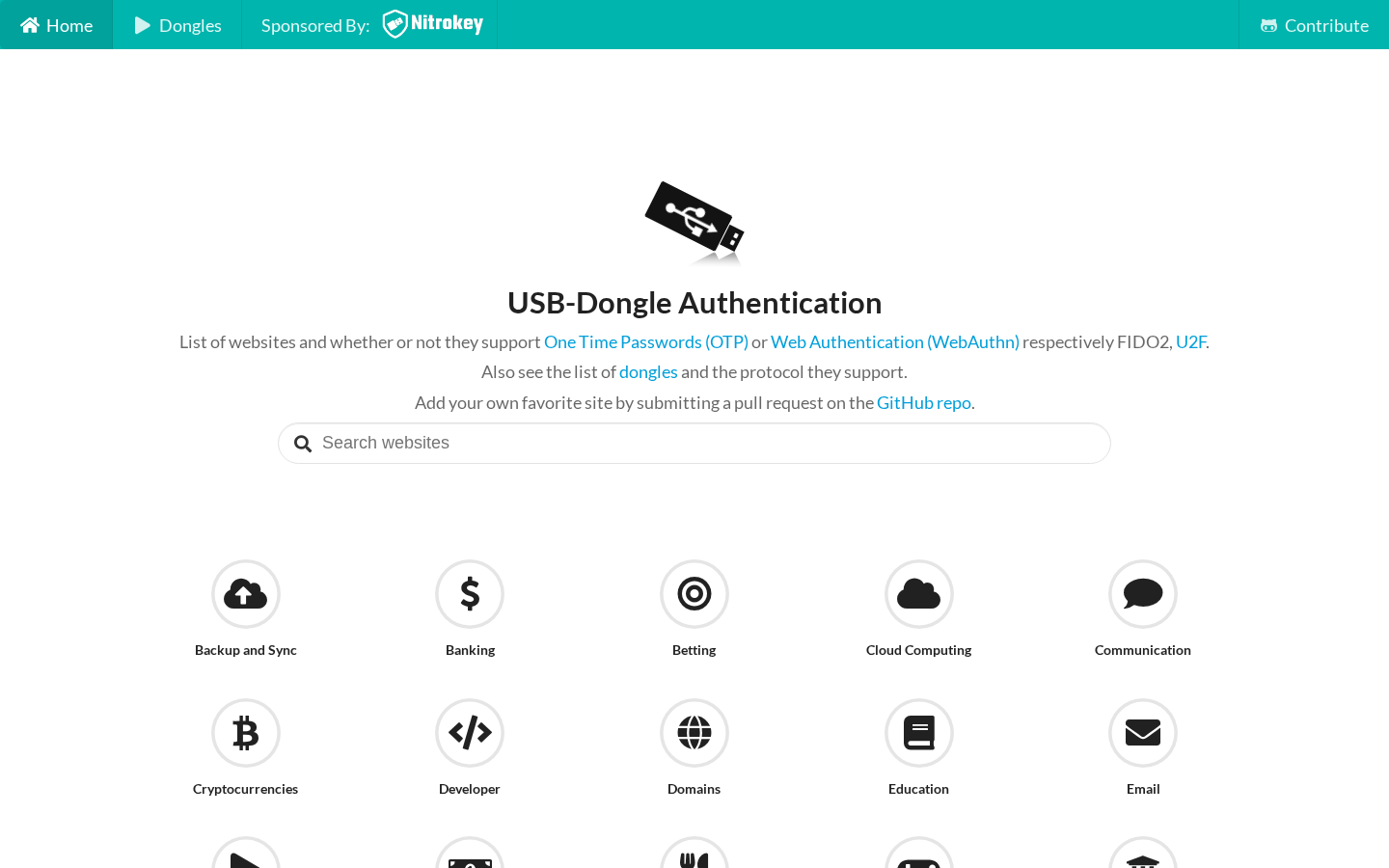
Check: https://www.dongleauth.com/ for service-by-service list
Using YubiKey for Daily Login
Desktop:
- Enter username and password
- Insert YubiKey when prompted
- Touch the gold contact
- Authenticated
Mobile (NFC YubiKey):
- Enter username and password
- Hold YubiKey against back of phone
- Authenticated
The key difference from TOTP: You can’t be phished. The YubiKey cryptographically verifies you’re on the real website.
Part 5: Backup and Recovery Strategy
The 2FA Dilemma
The more secure your 2FA, the harder account recovery becomes.
- Lost phone + no backup codes = locked out forever
- This is by design (if recovery is easy, so is attack)
Backup Strategy
For TOTP (Aegis/Raivo):
- Export encrypted backup from app regularly
- Store backup on:
- Encrypted USB drive
- Your password manager (encrypted file attachment)
- Second device running same app
- Test restoration periodically
Aegis backup:
- Settings → Backups → Create backup
- Choose location and enter password
- Save
.aegisfile securely
For hardware keys:
- Always have two keys
- Register both with every service
- Store backup key in secure location:
- Safe deposit box
- Home safe
- Trusted family member
For backup codes:
- Store in password manager
- Store printed copy in secure location
- Update when codes are used or regenerated
Recovery Process
If phone lost:
- Use backup codes to log in
- Disable old 2FA
- Set up new 2FA on new device
- Generate new backup codes
If YubiKey lost:
- Use backup YubiKey to log in
- Remove lost key from accounts
- Order replacement key
- Register new key
If both phone AND backup codes lost:
- You may be locked out permanently
- Some services have account recovery (usually requires identity verification)
- This is why backup strategy matters
Part 6: Best Practices
Do’s
- ✅ Enable 2FA on every account that supports it
- ✅ Use TOTP (authenticator apps) over SMS whenever possible
- ✅ Use hardware keys for critical accounts (email, password manager)
- ✅ Keep backup codes in password manager AND secure physical location
- ✅ Have backup hardware key if using YubiKeys
- ✅ Test your backup/recovery process periodically
Don’ts
- ❌ Use SMS 2FA if any other option available
- ❌ Store backup codes in unencrypted notes
- ❌ Use same device for password manager and authenticator (if device lost, both gone)
- ❌ Share hardware keys (they’re personal)
- ❌ Assume you’ll remember backup codes (you won’t)
When Sites Force SMS
Some sites only offer SMS 2FA. Options:
- Use it anyway — SMS 2FA is still better than no 2FA
- Use Google Voice number — Harder to SIM swap
- Complain to the company — Request better 2FA options
- Consider not using the service — If privacy/security is critical
Dealing with Authenticator App Limits
Some sites (especially banks) have their own apps:
- Bank of America requires their app
- Microsoft prefers Microsoft Authenticator for some features
Minimize app sprawl:
- Use standard TOTP whenever possible
- Accept vendor apps only when required
- Keep track of which app handles which account
Part 7: Advanced Topics
FIDO2 / WebAuthn
FIDO2 is the protocol behind hardware keys and passkeys:
- Passwordless authentication possible
- Phishing-resistant by design
- Privacy-preserving — different credential per site
WebAuthn is the browser API that implements FIDO2:
- Works in all modern browsers
- Enables hardware key and biometric authentication
Passkeys (Emerging Standard)
Passkeys combine password + 2FA into single authentication:
- Site prompts for passkey
- Device authenticates you (biometric/PIN)
- Cryptographic proof sent to site
- No password, no TOTP code needed
Current options:
- Apple Passkeys (synced via iCloud)
- Google Passkeys (synced via Google)
- Hardware-bound passkeys (YubiKey)
Trade-offs:
- Synced passkeys: convenient but trust cloud provider
- Hardware passkeys: secure but less convenient
TOTP on Hardware Key
YubiKey 5 series can store TOTP codes:
- Install YubiKey Authenticator
- Store codes on key instead of phone
- Codes require physical key to access
Benefit: Even if phone lost/stolen, TOTP codes safe on hardware key
Setup: Requires Yubico Authenticator app on computer/phone to read codes from key
Privacy Checkpoint
Your accounts are now significantly harder to compromise:
What changed:
- Critical accounts protected by 2FA
- Phishing protection via hardware keys (if using)
- Recovery strategy in place
- No reliance on SMS for authentication
What you gained:
- Password theft alone won’t compromise accounts
- Protection against credential stuffing
- Time to respond if password compromised
- Peace of mind for important accounts
What you traded:
- Extra step at login
- Dependency on second device/key
- Recovery complexity if backups fail
- Cost of hardware keys
Troubleshooting
TOTP code not working
Check:
- Time sync: Your phone’s time must be accurate
- Go to Settings → Date/Time → Enable automatic time
- Wrong account: Verify you’re using the right entry
- Expired code: Codes change every 30 seconds, try next one
- Backup code: Use backup code, then reconfigure 2FA
Hardware key not recognized
Check:
- USB connection: Try different port
- Browser support: Use Chrome, Firefox, or Edge
- Touch required: Wait for blink, then touch
- Site support: Some sites require re-registering keys
Lost phone, need to access account
- Use backup codes stored in password manager (from another device)
- If no backup codes:
- Contact service support
- Prepare identity verification
- May take days to recover
YubiKey touch not registering
- Touch firmly on gold contact
- Wait for LED to blink before touching
- Try different USB port
- Update YubiKey firmware (use Yubico tools)
Going Further (Optional)
Full Passwordless with Passkeys
Some services now support passkey-only authentication:
- Create passkey (hardware key or device biometric)
- Delete password entirely
- Log in with passkey only
This is the future of authentication, but support is still growing.
YubiKey for SSH
Use YubiKey to authenticate SSH connections:
- Generate SSH key on YubiKey
- Private key never leaves device
- Touch required for each authentication
Guide: https://developers.yubico.com/SSH/
YubiKey for GPG
Use YubiKey to store GPG keys:
- Private key on hardware
- Signing requires physical presence
- Works with email encryption
We’ll cover GPG in Cypherpunk School 101.
Self-Hosted TOTP
Vaultwarden (self-hosted Bitwarden) can serve as TOTP provider:
- TOTP codes stored alongside passwords
- Self-hosted, you control the data
- Trade-off: single point of failure
What’s Next
Your accounts are now protected by two-factor authentication. Next week, we’ll pull the pieces together with operational security—the habits and discipline that keep all these tools from being undone by one careless moment.
Week 11 covers operational security: threat modeling in practice, compartmentalization, and safe daily habits.
Summary
This week you:
- Learned why passwords alone aren’t enough
- Understood the hierarchy of 2FA methods (SMS → TOTP → Hardware Keys)
- Set up Aegis/Raivo authenticator app
- Enabled 2FA on critical accounts
- Learned about hardware security keys (YubiKey)
- Created a backup and recovery strategy
Your accounts are now protected by multiple factors. Even if an attacker steals your password, they can’t access your accounts without the second factor. Combined with your password manager (Week 4), encrypted storage (Week 9), and secure messaging (Week 6), you’re building serious security infrastructure.